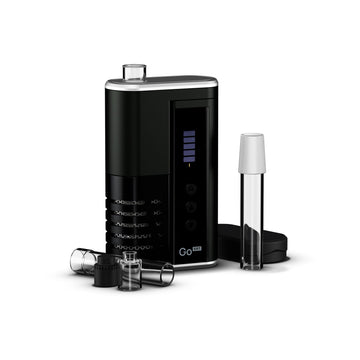
Arizer Go SRT firmware 4.20: clearer Heat Time and Session Extension
Arizer has released firmware 4.20 for the Go SRT, its latest software update for the portable. The release, titled “Battery Level at a Glance, Improved Heat Time Display, Session Extension, & More” on Arizer’s official Firmware Release Notes page, is a quality-of-life update. It doesn’t add a new heating trick. Instead, it makes the Go SRT easier to read and stops it switching itself off in the middle of a heat cycle.
Arizer’s release notes and the updated v4.20 operating instructions both appeared at the end of October 2026. The Arizer UK release notes page was updated on 30 October and Arizer’s main page on 3 November. Here’s what changes, why it matters day to day, and how to install it.

What’s new in Go SRT firmware 4.20
Arizer lists five changes in this release:
- More accurate battery readings. The charge percentage on screen should now track the remaining battery more closely.
- A battery icon on the main screen. You can check your charge level while you use the device, without opening a separate menu.
- More time in menus. Settings menus now stay open for 10 seconds instead of 5 before timing out.
- A clearer Heat Time countdown. A timer now shows how long the Go SRT will keep holding your preset temperature, and the bars stay yellow for the whole of Heat Time instead of changing from yellow to white.
- Session Extension. Auto Shut-Off is now delayed automatically so an active heat cycle can finish.
None of these is dramatic on its own. Together, though, they tidy up the parts of the SRT operating system that new owners most often find confusing.
Why the Heat Time change matters
The Go SRT doesn’t just heat to a temperature and stay there. Each of its three editable presets stores a temperature and a Heat Time, which is how long the oven actively holds that temperature. After Heat Time ends, the device moves into Residual Heat and the oven gradually cools while you finish your draws.
Under the earlier instructions (v3.00), the bars turned white during Heat Time to show the time remaining. That made it easy to mistake an active heat cycle for one that had ended. With 4.20, the bars stay yellow while the oven holds temperature and a countdown shows exactly how much time is left. If you’ve ever cut a session short because you thought heating had stopped, this is the fix you’ll notice first.
If you want a refresher on how presets, Heat Time and Go Shells fit together, our guide to the Go SRT and its Go Shells system walks through the basics.
Session Extension: no more mid-cycle shut-offs
The Go SRT has a safety Auto-Off timer that you can set to 20, 40 or 60 minutes in Settings. It’s there to save battery and make sure the device doesn’t stay on if you forget about it. Before 4.20, a long Heat Time started late in that window could run into the timer.
Session Extension, which is new in the v4.20 instructions, delays Auto Shut-Off automatically so your current heat cycle can finish without interruption. The existing Session Toggle is still there too: press and hold the UP button to check the battery percentage, see the remaining Auto-Off time and add time to your session by hand.

Battery level at a glance
Arizer lists up to one hour of use per charge for the Go SRT, and runtime depends heavily on your settings. The new on-screen battery icon and the more accurate percentage make it easier to judge whether you have enough charge for another Go Shell before you start heating.
Battery life is also where the earlier firmware 3.00 still matters. That release added Heat Mode, which lets you choose HIGH oven power for faster heating and stronger extraction, or LOW for gentler extraction and longer battery life. Heat Mode is still in the Settings menu in 4.20, and we covered it in detail in our Go SRT firmware 3.00 article. The extra time in menus should make switching between the two a little less rushed.
How to update your Go SRT
Go SRT firmware is updated from a computer, using the Firmware Updates page on Arizer’s official website, where you select Go SRT as your device. A few practical points will help it go smoothly:
- Use a data-capable USB-C cable. Some cables only carry power and won’t let the computer talk to the device.
- Charge first. Start with a reasonable battery level so the update isn’t competing with a flat cell.
- Follow Arizer’s on-screen steps. Select Go SRT and follow the instructions provided on the official page.
- Don’t unplug during the update. Leave the cable connected until the process says it has finished, even if the device looks inactive.
- Check your presets afterwards. Run a quick heat cycle to see the new yellow bars and countdown, and confirm your presets are set the way you like.
Arizer also offers email alerts for future software updates. The v4.20 instructions include a QR code for signing up.
Kit out your Go SRT
If you’re thinking about the portable itself, the Arizer Go SRT combines a hybrid oven, an all-glass vapour path and Go Shells that you can load ahead of time. For spares, browse our ArGo and Go SRT stems and accessories, and check each listing for compatibility before you buy. Small extras like silicone stem caps are handy for keeping preloaded glass clean in a bag.

The bottom line
Firmware 4.20 is a free update that fixes everyday annoyances rather than changing how the Go SRT vapes. You get a clearer view of your battery, a Heat Time display that’s easier to follow, more time to adjust settings, and no more Auto-Off cutting a heat cycle short. If you own a Go SRT, it’s worth ten minutes at a computer to install.